
WordPress Maintenance Plans: Monthly Checklist & Runbook
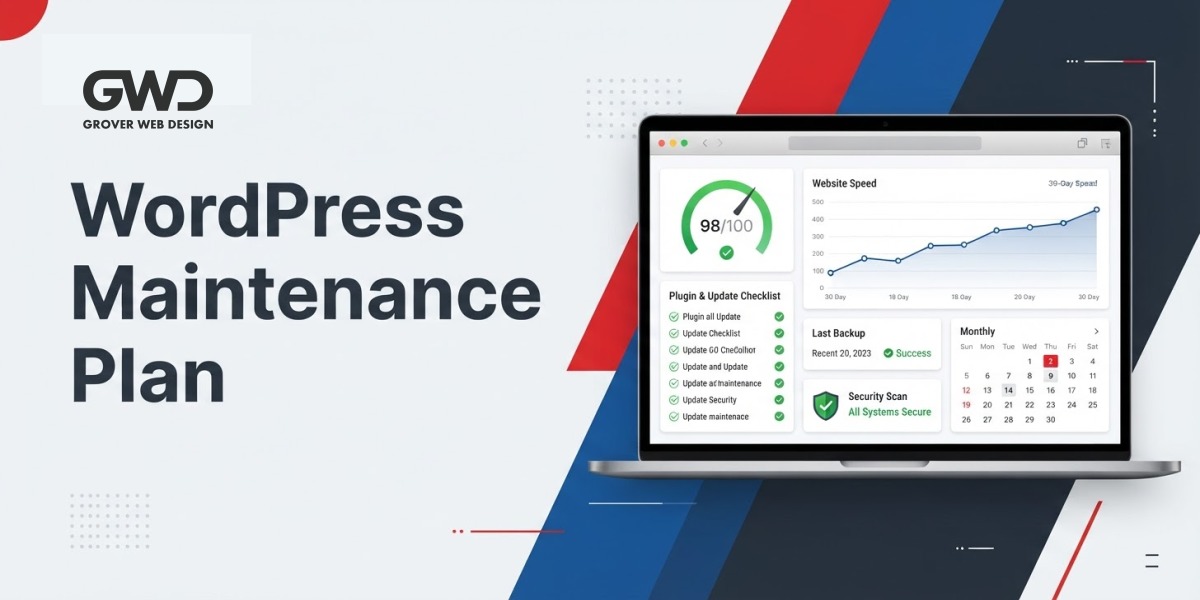
Keeping a WordPress site healthy is ongoing work. This guide organizes a practical monthly maintenance plan you or a trusted partner can run reliably — with clear owners, prioritized checks, a repeatable runbook, decision criteria, templates, and FAQs focused on business sites, e-commerce, and regulated portals.
Primary intent: what this article helps you do
If you searched for “wordpress maintenance plans,” this page gives a hands-on monthly checklist and operational playbook to keep a site fast, secure, and converting — plus the escalation triggers that tell you when to invest in architecture or a managed plan.
Who should use this plan
- Small and mid-size businesses that rely on their site for leads or sales.
- Marketing or product owners who need a consistent monthly routine.
- Teams running e-commerce, client portals, or HIPAA-adjacent projects that require stricter controls.
How to use this checklist
- Pick a consistent monthly date (first business day or the 1st of every month) and record runs in a maintenance log.
- Assign owners for each task: site owner for content/analytics checks; developer or agency for backups, updates, and security.
- Automate where practical (backups, uptime alerts, scans), but keep manual smoke tests, restore tests, and UX flow checks.
Monthly maintenance checklist (at-a-glance)
| Area | What to check | Frequency | Who |
|---|---|---|---|
| Backups & Recovery | Verify latest automated backups, confirm retention, test a one-page restore on staging | Monthly (with automated daily backups) | Developer / Host |
| Security & Malware | Run malware scan, review user accounts, enforce 2FA for admins | Monthly | Developer / Security Plugin |
| Core, Theme & Plugins | Apply updates on staging; run smoke tests for critical flows before production | Monthly | Developer |
| Performance | Check Core Web Vitals for representative pages; validate caching and CDN | Monthly | Developer / Site Owner |
| Forms & Integrations | Submit test leads, confirm CRM/webhook deliveries, payment flow checks | Monthly | Site Owner |
| SEO & Content Health | Confirm sitemap, robots.txt, analytics tracking, and top pages’ performance | Monthly | SEO / Content Owner |
| Uptime & Logs | Review uptime alerts, server error logs, and recent 5xx spikes | Monthly (alerts continuous) | Host / Developer |
| Compliance & Access | Audit user access, certificates, API keys, and retention settings | Monthly | Developer / Compliance Owner |
Detailed monthly tasks and how to run them
1) Verify backups and recovery
- Confirm the last successful automated backup in your host or backup tool and check retention counts.
- Test a restore to staging at least quarterly; for monthly runs, spot-check a representative page or database table if a full restore is impractical.
- For sites with sensitive records, verify backup storage location, access controls, and retention meet your compliance needs.
2) Security and malware checks
- Run scans with your security plugin or an external scanner. If anomalies appear, enable maintenance mode, take an offline backup, and escalate to a developer.
- Review WordPress users: remove stale admin accounts, require strong passwords, and enable two-factor authentication for privileged users.
- Check file permissions and server logs for suspicious access. Disable unused endpoints (XML-RPC) if not needed.
3) Core, theme and plugin updates (safe process)
Apply updates on a staging environment first. A resilient monthly process:
- On staging, update core, theme and plugins; run smoke tests for main journeys (forms, login, checkout, portal workflows).
- If staging passes, schedule updates during a low-traffic window and take a fresh pre-update backup of production.
- If an update breaks functionality, roll back using the backup and investigate compatibility fixes or replacements.
If you prefer to outsource updates, consider a managed plan or custom engagement that includes staged updates and rollback protection — our custom development and maintenance services pages describe typical approaches.
4) Performance spot-checks
- Record Core Web Vitals (LCP, CLS) for three representative pages: homepage, top landing, and a product/post page. Track month-over-month for regressions.
- Confirm caching layers are active: page cache, object cache (if used), and CDN edge. Purge caches after updates for affected pages.
- Optimize images: ensure new uploads use reasonable dimensions, enable responsive srcset, and remove orphan media if storage is ballooning.
5) Forms, payments and integrations
Submit a test contact form and any payment flow; verify delivery in your CRM and email. For webhooks, check delivery logs for recent failures and retry attempts. For portals, run a representative end-to-end workflow monthly to catch broken hooks early.
6) SEO, indexing and analytics
- Confirm sitemap availability and that robots.txt does not block important pages.
- Verify analytics tags (GA4/analytics) and goal conversions; check for tracking gaps after updates.
- Update meta titles/descriptions and add internal links on important but underperforming pages.
For prioritized technical fixes after an audit, see our SEO services.
7) Uptime and error monitoring
Review uptime alerts and server error logs for repeated 5xx responses or database connection issues. Investigate root causes rather than merely restarting services; persistent errors often indicate scaling or DB configuration issues.
8) Compliance and portal-specific checks
- Audit user access and remove stale accounts monthly.
- Verify SSL certificates, API key rotations, and encryption settings.
- Confirm audit logs and retention policies are intact for regulated data.
Regulated environments often require documented processes and vendor agreements — include compliance owners in maintenance planning.
Quick prioritization guide for small teams
If you can only run three checks each month, prioritize:
- Backups: ensure recoverability.
- Security scan & user access review: prevent compromises early.
- Forms & analytics: confirm leads are captured and tracked.
30–90 minute monthly runbook (repeatable)
This runbook fits a 30–90 minute monthly pass and can be used by a developer or operations lead as a predictable checklist.
- Confirm backup health: check latest backup timestamp and retention in your backup UI.
- Staging smoke test: push a recent DB/media snapshot to staging and run WP-CLI or UI checks for available updates (wp core check-update; wp plugin list –update=available).
- Run security scan and inspect recent file changes (by mtime) for anomalies.
- Purge page cache and CDN for updated pages; verify cache headers (cache-control, cf-cache-status or x-cache) on a few pages.
- Take a performance snapshot: record LCP and CLS for three representative URLs using Lighthouse or field data tools; log results.
- Submit a test form/lead and verify CRM delivery and webhook logs.
- Check analytics for tracking gaps or recent drops on top pages.
Decision framework: when to escalate or change architecture
Use these triggers to decide when maintenance is no longer sufficient and you should plan a deeper project or higher hosting tier.
- Sustained Core Web Vitals failures on primary pages (e.g., consistently slow LCP or significant CLS) — consider image delivery changes, server response improvements, or edge caching.
- Frequent 5xx or database connection errors (multiple alerts per day) — investigate scaling, persistent slow queries, and object cache configuration; coordinate with host.
- Planned traffic growth or marketing campaigns expected to increase traffic 2–3× — run a pre-launch load test and configure temporary cache rules or autoscaling with the host.
- Repeated plugin incompatibilities after updates — evaluate replacing or consolidating functionality into a supported custom solution.
- Compliance audit findings (HIPAA/PCI) — escalate to the compliance owner to review hosting contracts, encryption, and retention policies.
Risk matrix: common maintenance risks and mitigations
| Risk | Impact | Mitigation |
|---|---|---|
| Update breaks functionality | High — lost leads or broken checkout | Always stage updates, run smoke tests, and keep rollback snapshot ready |
| Backup failure unnoticed | High — no restore point after compromise | Automated alerts for backup failures and monthly restore tests on staging |
| Site slows after changes | Medium — reduced conversions | Track performance before/after changes and revert or optimize offending assets |
| Unauthorized admin account | High — potential data breach | Monthly user audits, enforce 2FA, remove stale accounts |
Monthly report: one-page summary template
Share a concise report with stakeholders after each monthly pass. Keep below one page and include clear owners for follow-ups.
| Metric | Current | Last Month | Action / Owner |
|---|---|---|---|
| Backups (last run) | YYYY-MM-DD HH:MM | YYYY-MM-DD | Verify retention; test restore / Dev |
| Uptime (30 days) | Check host dashboard | Check host dashboard | Investigate dips / Host |
| LCP (home) | Measured value | Measured value | Image optimization / Dev |
| Open security alerts | Number | Number | Quarantine / Dev |
Sample maintenance log row (copy into your spreadsheet)
| Date | Checked by | Area | Action taken | Follow-up / Notes |
|---|---|---|---|---|
| YYYY-MM-DD | Owner initials | Backups | Verified automated backup; retention OK | Schedule restore test next quarter |
First 90 days implementation checklist
- Week 1: Baseline run — capture all metrics, enable monitoring alerts, verify backup and restore steps.
- Week 2–4: Harden & automate — enable 2FA, schedule automated backups, configure CDN and cache rules, set up uptime alerts.
- Month 2: Performance sprint — audit images, critical CSS, and slow plugins; implement measurable improvements for top landing pages.
- Month 3: Review & optimize — analyze report trends, decide if hosting or CDN upgrade is needed, and document SLA expectations with owners.
Operational examples and practical notes
Example ticket titles you can use in your task tracker:
- “Monthly WP Maintenance: Backup verification & restore test”
- “Staging Update: Apply core & plugin updates, smoke test checkout”
- “Performance snapshot: LCP/CLS for homepage & landing”
Quick CLI snippets that developers commonly use (adapt to your environment):
- Export a small DB snapshot:
mysqldump --single-transaction --quick --lock-tables=false --databases your_db > db-snapshot.sql - WP-CLI checks on staging:
wp core check-update; wp plugin list --update=available - Find recent files changed:
find . -type f -mtime -30 -print | sort
FAQ
How often should I run maintenance?
Monthly is the practical minimum for most business sites. High-traffic, e-commerce, or regulated portals may need weekly checks and continuous monitoring.
Can I automate everything?
Many tasks can be automated (backups, uptime alerts, malware scans), but manual checks are still necessary for restores, staged updates, and UX flow verification that automation can miss.
What should I do if I find malware?
Enable maintenance mode, preserve current backups, and isolate the site. If you lack in-house expertise, escalate immediately to your developer or a security provider. Regular backups and staged updates reduce recovery time.
How long does monthly maintenance take?
For a typical small business site, expect 1–3 hours per month for checks and light fixes. Complex portals or e-commerce sites require more time for integrations and testing.
Is a maintenance plan the same as hosting?
No. Hosting provides infrastructure and sometimes automated backups. A maintenance plan includes active operational work: staged updates, security hardening, performance tuning, monitoring, and reporting to keep the site stable and converting.
When to outsource and how to choose a partner
Consider outsourcing if you lack developer resources, need guaranteed SLAs, or run regulated data. A good partner will provide:
- Staged updates and rollback protection
- Monthly operational reports and a single point of contact
- Clear escalation paths for incidents and measurable SLAs
If you want help implementing a managed plan or a staged update workflow, review our services, explore custom solutions under custom development, or discuss technical SEO changes with our SEO team.

Talk with Donny about wordpress maintenance plans.
Grover Web Design can review the opportunity, improve the page, and connect search visibility to a stronger lead path.