
WordPress 7.1 Changelog: Practical Tests & Upgrade Decision Framework
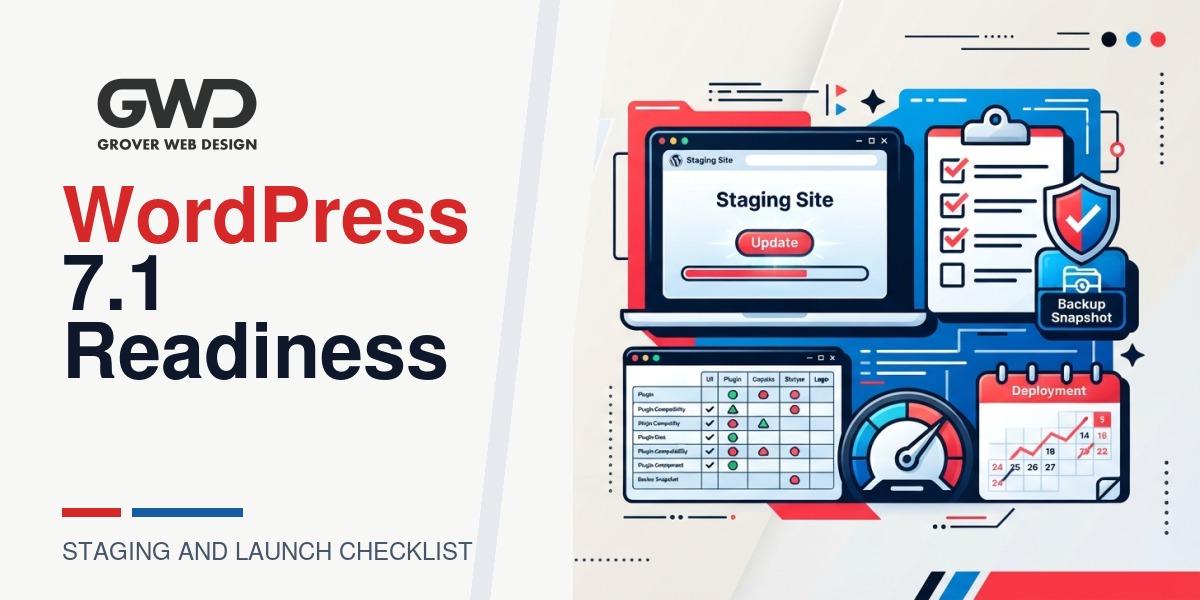
If you searched for “wordpress 7.1 changelog” you likely want two things: a concise summary of the changes that could affect your site, and a repeatable test plan you can run on staging to decide whether to upgrade now. This guide translates changelog signals (deprecations, REST or auth changes, editor updates, and security fixes) into concrete checks, a prioritized checklist, and a rollout decision framework you can use with your developer or agency.
Quick answer: which changelog items need your attention first
Scan the changelog for these categories and map each to a concrete test on staging:
- Deprecations or removed functions — can break custom themes, mu-plugins, or older plugins that call core functions directly.
- REST API and route changes — headless frontends, webhooks, and integrations may need payload or path updates.
- Authentication, nonce, or session behavior — affects logins, forms, SSO, and token-based API calls.
- Editor and block changes — could alter saved content rendering or dynamic block behavior.
- Performance or script-loading adjustments — may change Core Web Vitals, LCP, or CLS.
- Security fixes — treat these as high priority to deploy after minimal staging validation.
How to use this page
Start with the quick checklist below, then use the mapping table to convert changelog items into tests. Follow the step-by-step staging plan, apply the rollout decision framework, and refer to the troubleshooting and FAQ sections if something goes wrong.
One-page priority checklist
| Priority | Action | Why it matters |
|---|---|---|
| Critical | Full backup + host snapshot, then clone to staging | Reliable rollback if production update fails |
| High | Scan changelog for deprecations, REST/auth changes, and map to site features | Targets tests to likely breakpoints (forms, checkout, API integrations) |
| High | Inventory active plugins, theme, and custom code; check vendor notes | Identifies unsupported or abandoned extensions before upgrade |
| Medium | Run smoke tests on staging for critical flows and integrations | Confirms functional parity after upgrade |
| Medium | Capture performance and SEO baselines (Lighthouse, sitemap, structured data) | Detects rendering or speed regressions that could affect rankings |
Changelog-to-test mapping (practical examples)
As you read the changelog, annotate entries and add the matching test below to your staging checklist. Here are common mappings that are quick to run.
| Changelog note | Concrete test to add on staging |
|---|---|
| Deprecation of function used by theme or plugin | Grep codebase for function name, load pages that use that template, enable WP_DEBUG and check logs |
| REST route parameter changes | Run API calls from integrations, validate response schema and status codes, and test webhook receivers |
| Nonce, authentication, or session changes | Test login, password reset, forms with nonce, and any SSO or token-based API flows |
| Block editor or block API changes | Open representative posts/pages in the editor, change and save them, then review frontend rendering |
| Changes to script/style loading or defer behavior | Run Lighthouse on key pages, compare LCP and CLS to baseline, and test interactive elements |
Step-by-step readiness plan for staging
1. Backup and snapshot (do this first)
- Full database dump (mysqldump or host tools) and an off-site copy of wp-content and any custom directories.
- If your host provides snapshots, capture one labelled with timestamp and changelog reference for quick rollback.
- Record backup IDs and storage locations in your handoff checklist.
2. Create a staging environment that mirrors production
Clone the site into staging with the same PHP minor version, webserver rules, caching settings, and as much of the CDN behavior as you can reproduce. If you use a CDN, either mirror key page rules or bypass the CDN for staging to avoid caching differences. For guidance on replicating CDN rules you can use our Cloudflare checklist.
3. Inventory active plugins, themes, and custom code
- Make a simple spreadsheet: name, version, active (Y/N), function (checkout, forms, SEO), vendor/support link, and risk level.
- Mark items that touch authentication, REST routes, payments, or scheduled imports as high risk and test them early.
- Check vendor changelogs for explicit compatibility notes and open support tickets for any uncertain cases.
4. Annotate changelog entries with one-line tests
For each changelog entry that could affect your site, write a one-line test. Example: “Changelog: nonce lifecycle change —> Test contact form, password reset, and a webhook-authenticated endpoint.” This keeps the test scope targeted and efficient.
5. Run automated and manual smoke tests (on staging)
- Enable WP_DEBUG on staging and collect PHP warnings and notices during testing.
- Smoke test critical flows: homepage, product pages, checkout, contact forms, login/registration, and media uploads.
- Validate integrations: payment gateway authorizations, CRM webhooks, analytics events, and inventory or ERP syncs.
- Run Lighthouse or PageSpeed snapshots for your top landing pages and compare to pre-upgrade baselines.
- Perform a content-editing check: open and save representative posts in the block editor, and confirm frontend rendering matches expectations.
6. Theme and child-theme checklist
- Search for deprecated functions and hooks in functions.php and custom templates.
- Ensure scripts and styles use wp_enqueue_script/wp_enqueue_style rather than hard-coded tags.
- If issues surface, temporarily switch to the parent theme on staging to isolate whether the child theme is the source.
7. Plugin compatibility strategy
- Prioritize plugins that modify the front-end or intercept API requests (page builders, eCommerce, forms, caching).
- Temporarily disable non-critical plugins and rerun smoke tests to isolate incompatibilities.
- If a plugin is abandoned or incompatible, plan a replacement or a compatibility patch before upgrading production — our custom development team can help with compatibility fixes.
8. Deployment and rollback steps
- Schedule a low-traffic maintenance window and notify stakeholders.
- Optionally enable maintenance mode while applying the update if live actions could be disrupted.
- Update production, monitor application and PHP logs, and run the same smoke tests used on staging immediately after update.
- If critical failures occur, restore the snapshot or backups and open a debugging ticket with detailed logs and reproduction steps.
Decision framework: upgrade now, wait, or block
Use this matrix to pick an action based on your site profile and changelog exposure. Evaluate the presence of commerce, custom REST endpoints, and abandoned extensions and follow the recommended action.
| Site profile | Indicators | Recommended action |
|---|---|---|
| Low risk | Few or no custom plugins, no commerce, staging tests pass | Schedule upgrade in the next maintenance window after backup |
| Moderate risk | Some custom code or commerce, dependencies appear compatible but tests incomplete | Complete targeted tests, plan rollback, then upgrade during low traffic |
| High risk | Active checkout/subscriptions, custom REST endpoints, abandoned plugins, or failing staging tests | Block on production until fixes or replacements are implemented |
Performance, SEO and crawl checks (pre/post)
Core updates can change rendering behavior and script order which may affect Core Web Vitals and structured data. Capture these checks before and after the upgrade:
- Run Lighthouse/PageSpeed snapshots for key landing and conversion pages and compare metrics.
- Confirm sitemap.xml and robots.txt remain unchanged and accessible to crawlers.
- Perform a crawl (Screaming Frog or similar) to detect 4xx/5xx errors and broken JS affecting structured data.
- Check Search Console for coverage or structured data errors after rollout.
If you need help with technical SEO checks or remediation after an upgrade, our SEO services can run pre/post audits and provide fixes.
Troubleshooting common post-upgrade issues
- White screen / PHP fatal — enable WP_DEBUG on staging, inspect error logs, and restore snapshot if production is unusable.
- Broken layout — purge caches (server, plugin, CDN), verify enqueued CSS/JS, and test with the parent theme to isolate the problem.
- Forms or API failures — check nonce/auth behavior and compare request/response payloads against pre-upgrade samples.
- Slow admin or high query times — check object cache, inspect slow queries, and profile plugins for heavy DB calls.
Staging handoff checklist (copyable)
- Backup / snapshot ID: __________________
- Staging URL and credentials: __________________
- Primary test user account with required permissions: __________________
- PHP and server stack version: __________________
- Critical user flows to test (list): __________________
- Expected rollback time (minutes): __________
When to involve a developer or agency
Engage professional help if you have custom REST endpoints, subscription billing, ERP or inventory syncs, or abandoned plugins that require replacement. Our custom development team runs staged upgrades, compatibility patches, and emergency rollbacks for sites with those needs. For managed upgrade coordination and support options, see our services overview or reach out via the contact page.
Useful internal resources
- Cloudflare performance checklist — replicate CDN rules in staging and avoid caching surprises.
- Custom Web Development — compatibility patches and emergency fixes.
- SEO services — pre/post upgrade audits and remediation.
- Services overview — managed updates and support options.
FAQ
Do I need to upgrade immediately when WordPress 7.1 is released?
No. Prioritize security fixes but schedule major upgrades for a low-traffic window after validating on staging. If staging tests pass and critical plugins report compatibility, proceed on your schedule.
How do I find which changelog entries affect my site?
Search the changelog for keywords like deprecated, REST, auth, nonce, block, or database. Grep your codebase for matching function names, endpoints, or hooks and map each match to a specific test on staging.
What’s the minimum rollback plan I should have?
At minimum: a full DB dump, a copy of wp-content, and a host snapshot that you can restore. Practice restoring on a dev copy so you know the steps and time required.
Will my SEO rankings be affected by the update?
Not directly by the changelog itself. Regressions that change rendering, structured data, sitemap accessibility, or page speed can affect rankings. Capture pre/post snapshots and address regressions quickly; if you want help, our SEO services can handle the audits and fixes.
Can Grover Web Design run the upgrade for me?
Yes. We offer staged upgrades, compatibility audits, and post-upgrade validation. Our custom development team handles upgrades for complex sites and can implement compatibility fixes and emergency rollbacks. See our Custom Web Development page or contact us to scope the work.

Talk with Donny about wordpress 7.1 changelog.
Grover Web Design can review the opportunity, improve the page, and connect search visibility to a stronger lead path.