
WordPress Website Maintenance Checklist for Business Sites
WordPress Website Maintenance Checklist for Business Sites
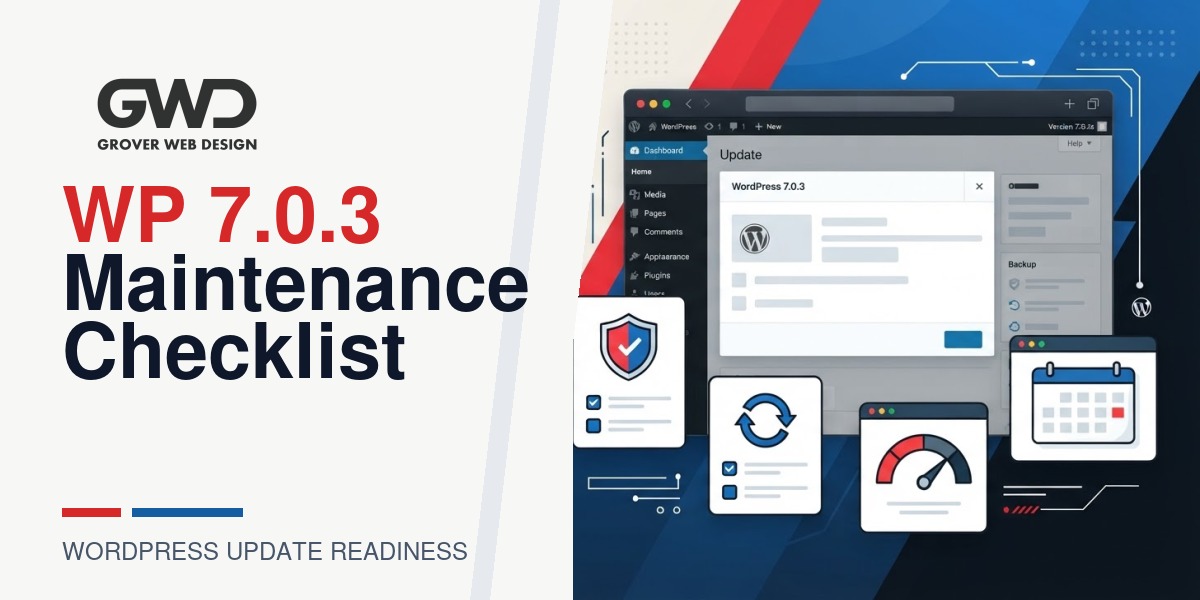
This guide gives a compact, actionable maintenance checklist and repeatable runbook to keep business WordPress websites secure, available, and search-friendly. If your site handles leads, memberships, or payments, follow a staging-first workflow, verify critical flows, and keep a tested rollback path. Use the decision framework below to pick the right level of testing and staffing for your site.
Resolve the intent: what this checklist delivers
If you searched for “wordpress website maintenance checklist,” this page answers exactly what to check before, during, and after updating WordPress core, plugins, themes, or server PHP. It gives a prioritized list you can run in 5 minutes, a longer staging-to-production flow, WP-CLI examples, an emergency rollback runbook, and a monthly maintenance cadence.
Quick 5-minute pre-update checks (do these first)
- Full backup: Create a file + database backup and copy it off-site (S3, Dropbox, or your host snapshot). Confirm the backup can be restored to staging or locally.
- Staging available: Ensure you can clone the site to a staging environment. If not, schedule a controlled maintenance window and prepare a quick staging copy before updating production.
- Compatibility scan: List active plugins, theme, and must-use plugins (mu-plugins). Note any compatibility warnings from plugin authors.
- Stakeholder notification: Tell the team the planned window and expected rollback contacts.
- Admin access: Ensure at least two admin users can log in and run smoke tests after the update.
Decision framework: how deep should maintenance be?
Not all sites need the same level of testing. Use this quick framework to pick your test depth and rollback readiness based on site risk.
| Site Type | Test Depth | Staging Required | Rollback Readiness |
|---|---|---|---|
| Small brochure site | Light — spot checks (homepage, contact form) | Recommended but optional | Basic backup snapshot |
| Membership / content site | Moderate — login, subscriptions, key pages | Required | Tested DB + file restore |
| eCommerce / payments | Deep — end-to-end checkout, webhooks, sandboxes | Required | Fast host snapshot rollback + payment sandbox tests |
| Custom integrations / enterprise | Comprehensive — automated smoke tests, CI/CD | Required with CI/CD | Runbook and on-call team |
Step-by-step maintenance checklist (detailed)
1. Backup and export (mandatory)
- Export the database with a timestamped filename and create a compressed archive of wp-content and other non-core files.
- Store at least one copy off-site and verify the archive opens and the DB imports into a staging environment.
- Record the backup filenames or snapshot IDs in your maintenance log before you proceed.
2. Clone to staging and test updates there first
- Push a full staging copy (files + DB). If your host offers one-click staging, use it — it’s faster and less error-prone than manual copies.
- On staging, run theme and plugin updates first (if authors provided compatibility notes), then run the core update.
- Document and resolve warnings on staging before touching production.
3. Safe update sequence (recommended)
- Put the site in maintenance mode and disable caching to avoid serving mixed assets.
- Run plugin and theme updates first when possible; many authors release compatibility patches in parallel with core changes.
- Then run the core update; after success, re-enable plugins and run compatibility checks.
- Clear caches and purge any CDN after the update.
4. Smoke-test critical user journeys
On staging, manually verify each critical flow and capture screenshots or short notes. Typical checks:
- Homepage load and main navigation
- Login, registration, and profile updates
- Checkout, payment callbacks, and webhook processing (for eCommerce)
- Contact/lead forms and confirmation emails
- Search, filters, and AJAX interfaces
- Scheduled jobs (cron, newsletters, exports)
- Third-party integrations (payment gateways, CRM, analytics)
5. Check custom code, child themes, and drop-ins
- Search for deprecated functions, direct core edits, or hard-coded paths. Move any direct core edits into a child theme or plugin to future-proof the site.
- Verify mu-plugins and drop-ins (object-cache.php, advanced-cache.php) for compatibility.
- If you maintain custom Gutenberg blocks, run editor flows and confirm blocks render and save correctly.
6. Server, PHP, and security checks
- Confirm the PHP version and memory_limit meet plugin and theme requirements. Do not change PHP in production without staging validation.
- Verify HTTPS, redirects, and HSTS rules remain intact after the update.
- Run a quick vulnerability scan (WPScan, security plugin, or host scanner) and review server error logs.
7. Performance and CDN
- Clear server and plugin caches after the update.
- Purge CDN caches (Cloudflare, Fastly) so visitors receive new assets.
- Run a quick Lighthouse snapshot or RUM check to detect regressions in LCP, CLS, or TTFB.
8. SEO and analytics validation
- Confirm sitemap generation and submission to Search Console or your monitoring system.
- Verify analytics (Universal Analytics / GA4) and conversion tags still fire on key pages (checkout thank-you, contact success pages).
- Check canonical tags, meta robots, and structured data for accidental changes.
9. Accessibility and mobile checks
- Smoke-test mobile navigation, forms, and primary CTAs across common viewports.
- Run quick accessibility checks for form labels, focus order, and ARIA landmarks.
10. Production deployment and rollback plan
- Choose a low-traffic window and notify stakeholders. Take a fresh backup immediately before updating production.
- Assign roles: Operator to run updates, QA to run smoke tests, and an on-call developer to handle rollbacks if needed.
- Document restore commands and host snapshot steps so anyone on the team can follow the runbook quickly.
Fast rollback runbook (emergency playbook)
If something breaks in production, follow this ordered checklist to restore service quickly.
| Problem | Immediate Action | Commands / Notes |
|---|---|---|
| Fatal PHP error / white screen | Deactivate plugins/themes via WP-CLI or rename directories via SFTP | wp plugin deactivate –all OR mv wp-content/plugins/plugin-folder plugin-folder.disabled |
| Broken data or forms | Import pre-update DB backup | wp db import backups/db-pre-update.sql |
| Missing files or corrupted assets | Restore compressed site archive or host snapshot | Use host console or unzip archive to site root; reset permissions |
| Third-party integration failures | Re-enable sandbox mode and rerun webhook tests | Check provider logs (payment gateway, CRM) |
WP-CLI cheat sheet (agency-friendly)
Use WP-CLI with safety flags when possible. Run these from the site root and adapt filenames to your environment.
wp --skip-plugins --skip-themes db export backups/db-pre-update.sql

# update plugins and themes
wp --skip-plugins --skip-themes plugin update --all
wp --skip-plugins --skip-themes theme update --all

# update core
wp --skip-plugins --skip-themes core update

# verify core files
wp core verify-checksums

# clear cache (depends on plugin)
wp cache flush

# restore DB if needed
wp db import backups/db-pre-update.sql
Automating updates: pros, cons, and safety nets
Automating minor updates reduces manual work but requires safety tooling:
- Pros: faster patching, fewer stale plugins, consistent security posture.
- Cons: automated updates can surface regressions outside business hours and may break custom code without alerts.
- Safety nets to implement: daily backups, automatic staging for major updates, automated smoke tests, email/slack alerts, and a fast rollback route (host snapshot or scripted restore).
Monthly and quarterly maintenance cadence
- Weekly: Confirm backups, scan for security alerts, check uptime.
- Monthly: Run plugin/theme updates on staging, review performance snapshot, confirm sitemaps and analytics.
- Quarterly: Review PHP and dependencies, accessibility spot checks, and a content/SEO review.
- Annually: Full dependency audit and UX review for major version upgrades.
Roles and responsibilities (simple runbook)
- Owner: Approves timing and stakeholder notifications.
- Operator: Runs backups and executes updates per the runbook.
- QA: Runs smoke tests and verifies analytics/tracking.
- On-call developer: Executes rollback steps and resolves blocking issues.
Monitoring and the 72-hour post-update checklist
- Check server and application logs at 0, 4, 24, and 72 hours for warnings or errors.
- Validate conversion events, email delivery, and webhook processing after updates.
- Confirm scheduled tasks ran as expected and monitor uptime, error rates, and page performance for regressions.
Printable quick status table
| Item | Status | Notes |
|---|---|---|
| Full file + DB backup | Done / Pending | Filename / Snapshot ID |
| Staging update completed | Done / Pending | Staging URL |
| Plugin & theme compatibility | Done / Pending | List warnings |
| Critical flows smoke-tested | Done / Pending | Tester initials |
| Rollback plan tested | Done / Pending | Restore time estimate |
When to call your developer or agency
- If your site uses heavy custom code, custom blocks, or older PHP dependencies — have a developer run staging updates.
- For uptime-sensitive systems (eCommerce, memberships), schedule a pre-update review and a monitored post-update window.
- If you want an automated update pipeline with safety nets (snapshots, smoke tests, alerting), a development partner can implement it — see our services and custom development options.
Related maintenance and SEO considerations
Post-update checks should include SEO and tracking validation. If you need help reconnecting search visibility or verifying analytics after updates, our SEO Services cover sitemap, schema, and conversion tracking validation.
FAQ
Should I update immediately when a maintenance release appears?
No — not without backups and a staging test for business-critical sites. For low-risk brochure sites you can update quickly, but for memberships or eCommerce sites follow the staging-first checklist above.
How long does the full maintenance process take?
Small brochure sites: about 30–90 minutes. Complex sites with integrations or payments: 2–6+ hours including staging, testing, and monitoring. A dry-run on staging reduces surprises and shortens the production window.
What if a plugin breaks after the update?
Deactivate the plugin via WP-CLI or SFTP, restore the pre-update DB if necessary, and test either the plugin author’s fix or an alternative. If the plugin is critical, revert to the backup while you resolve the conflict.
Can I automate future minor updates?
Yes — with safety nets. Automate minor security and patch updates but pair automation with daily backups, staging for major updates, automated smoke tests, and monitoring alerts. A partner can design and operate this pipeline.
How do I know if an update affected SEO or tracking?
Immediately validate sitemap, robots, canonical tags, schema, and key conversion events. Keep a 72-hour monitoring window to capture delayed failures like webhooks or background jobs.
Document the update before closing the maintenance window
Record WP version, update time, backup/snapshot reference, plugins/themes changed, smoke-test results, and the approver. Store this record in a shared maintenance log. For business-critical sites, recheck error logs, conversion events, and scheduled tasks on the next business day—successful page loads immediately after an update do not guarantee background jobs, webhooks, or email delivery remained intact.

Talk with Donny about wordpress website maintenance checklist.
Grover Web Design can review the opportunity, improve the page, and connect search visibility to a stronger lead path.